 HALRON← Back to HALRON
ESSENTIAL EDITION 1.0 · METALHEAD
Your first session
starts here.
A short guide to installing HALRON and running your first model on your Mac.
1. Check your Mac
You need an Apple-silicon Mac running macOS 26, with at least 8 GB of unified memory. Allow additional disk space for models: downloads can require several gigabytes. Larger models require more memory.
2. Install HALRON
- Download the official ZIP from the HALRON website. Compare it with the package checksum supplied with the release.
- Extract the ZIP and move HALRONMetalHead.app to Applications. Open it from Finder.
- If macOS says it cannot verify HALRONMetalHead, choose Done.
- Open System Settings → Privacy & Security, find the HALRON entry under Security, and choose Open Anyway.
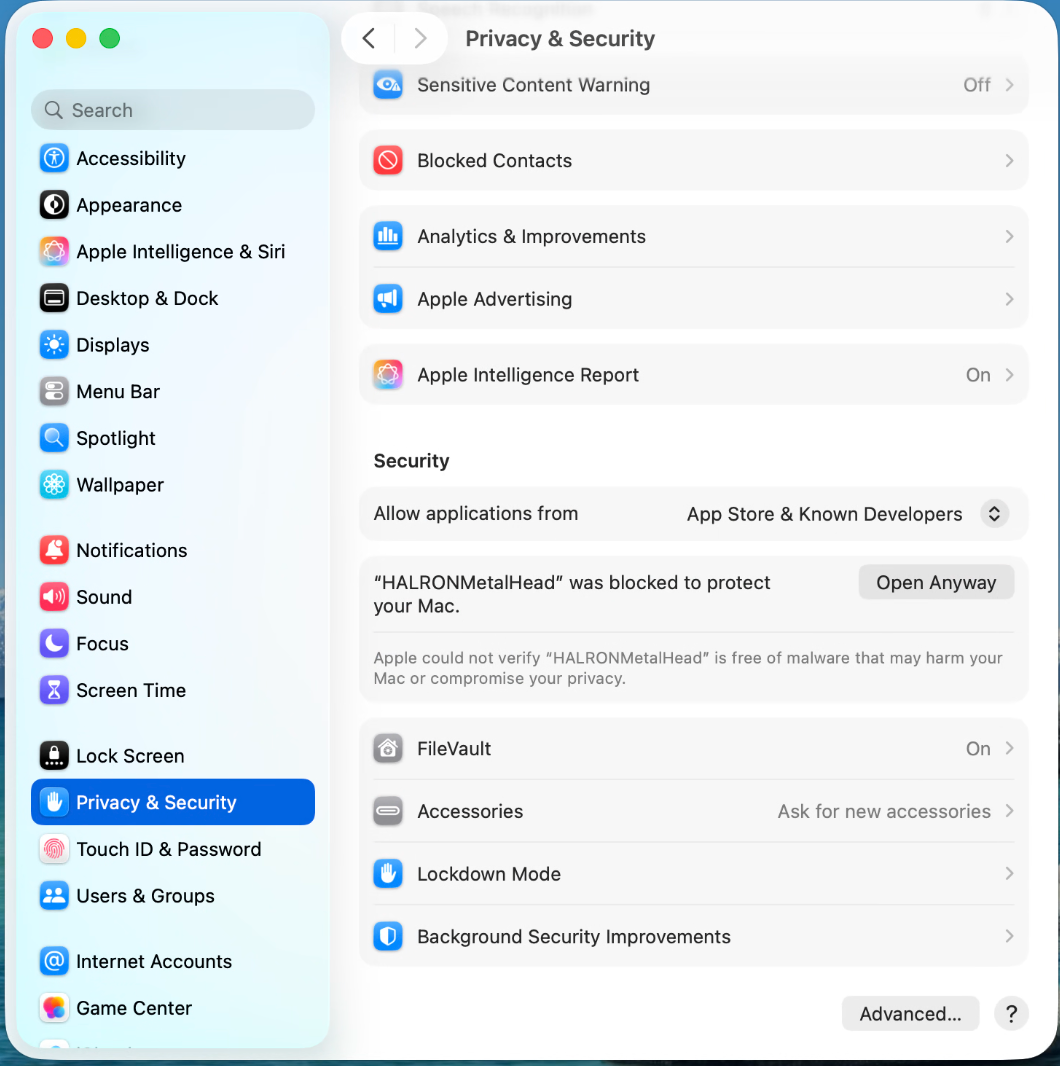
Find HALRON under Security and select Open Anyway. - Complete the macOS confirmation, then return to HALRON.
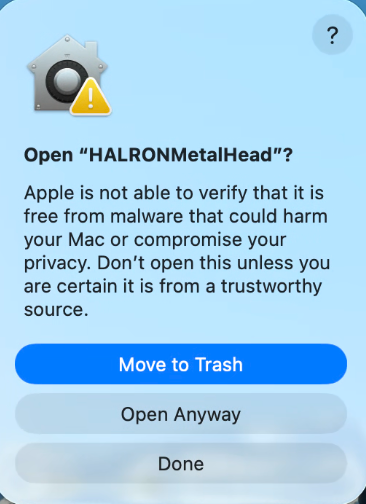
Build 66 is not Apple-notarized. Approve only the official app you intended to install. A warning about damage or detected malware is different: stop and contact support. Do not disable Gatekeeper globally.
3. Make it yours
The Setup Assistant walks you through your licence, local memory budget, starter model, model check and appearance. Review the agreements and the terms for your chosen model before downloading.
On supported Macs, Llama 3.2 3B Instruct (4-bit) is the recommended default. The smaller Llama 3.2 1B can serve as a fallback or a default on minimum-memory machines. Let HALRON’s capacity checks guide your selection.
4. Start a conversation
Choose New Session, select an installed model, type a message and select Send. You can add supported documents or images with Attach Files. Searchable PDFs are supported; scanned PDFs without searchable text are not.
Use notebooks to organize sessions, the Reader to listen, and Export to save Markdown, HTML or PDF. Essential Edition runs one local request at a time.
Local AI, with clear boundaries.
Model inference and the Reader run locally. Internet access is used for model downloads, licence activation and refresh, and optional News & Announcements. You can turn off automatic news checks in Settings.
AI output can be wrong. Review it before relying on it. For the full reference, use HALRON’s user documentation supplied with the release.
Need a hand?
Email customerservice@floatingpoint.tech with your HALRON version, Mac model, macOS version and the exact message you see. Leave out your licence key and private session content.