Apple silicon & macOS 26+
Use an M-series Mac running macOS 26 or later. Start with at least 8 GB of unified memory and a small model that fits.
 HALRON

PERSONAL AI WORKSPACE FOR MAC · VERSION 1.0
Install HALRON, set up a local model and make the workspace your own. This guide takes you from download to your first Session—and your first conversation with HALRON, AIDA or AIMAN.
Apple silicon · macOS 26+ · 15-day evaluation · Licence activation required afterward
01 / BEFORE YOU BEGIN
Use an M-series Mac running macOS 26 or later. Start with at least 8 GB of unified memory and a small model that fits.
Allow storage beyond the app itself. Model downloads can take several gigabytes or much more; review each model’s size and memory guidance before downloading.
Model downloads and licence activation use the internet. Microphone access and on-device speech assets are needed only if you choose voice input.
App compatibility and model capacity are different. A Mac can run HALRON while lacking enough available memory for a particular model. Follow the permitted budget and model guidance shown in the app.
02 / DOWNLOAD & FIRST LAUNCH
Open HALRONPersonal AI WorkspaceHALRONSymbion.app; Finder may display HALRON Personal AI Workspace for Mac. Quit any older copy before opening the new one.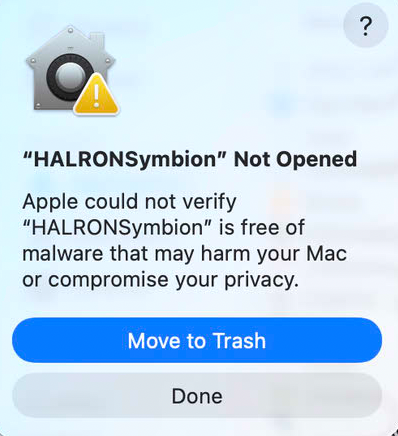
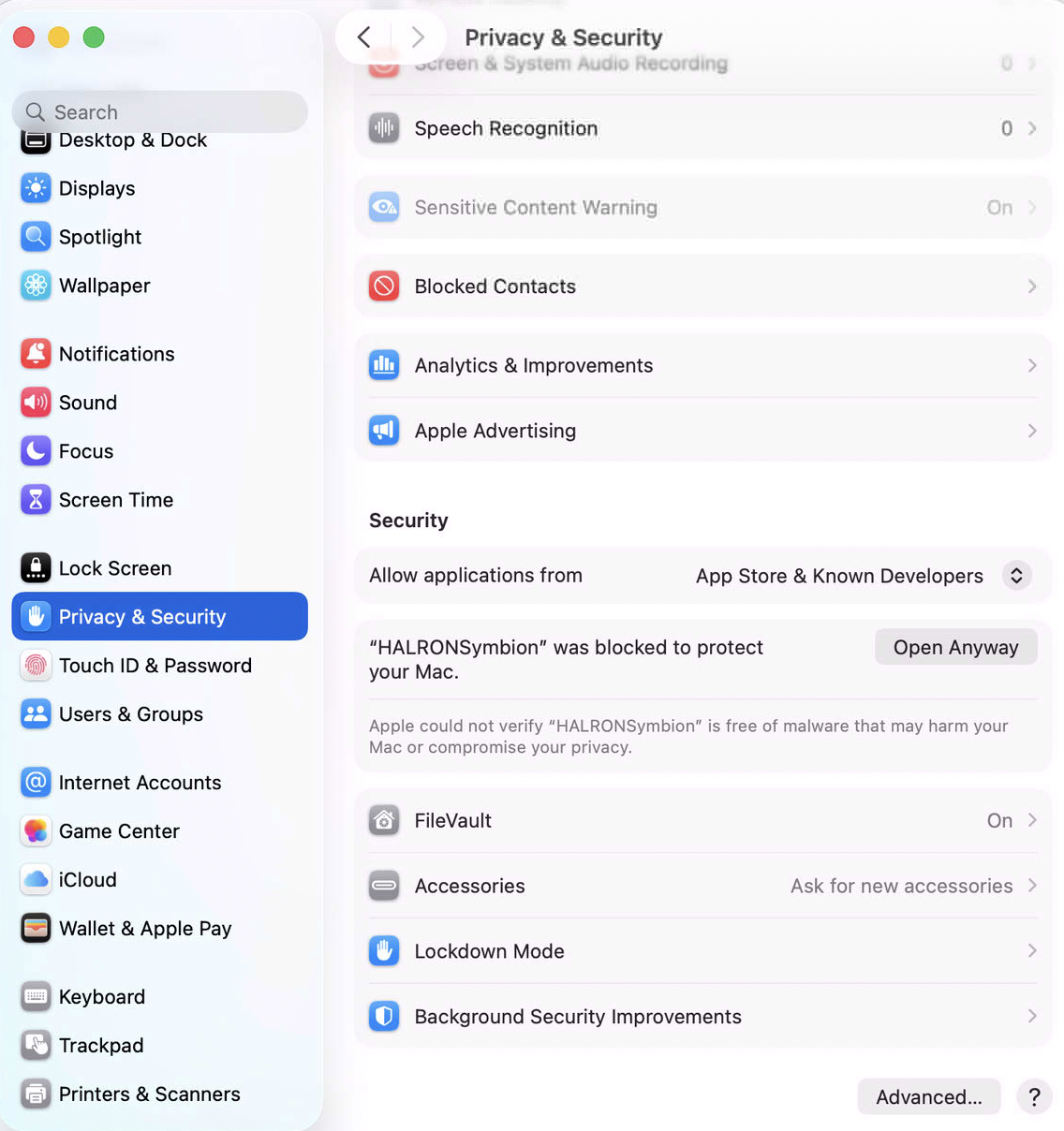
If macOS reports malware or a damaged app, stop and contact support. Do not disable Gatekeeper globally. Read Apple’s opening-apps guidance ↗
Updating an existing installation? Create Local Data and System Settings backups before opening the new version. Keep the earlier app and backups until you have checked the update.
03 / YOUR FIRST LAUNCH
Review the application agreements, then follow the assistant’s seven steps. If you close it before finishing, your committed progress is retained. Reopen it from Help → HALRON Setup Assistant….
Read the local-first overview and continue. Model licences are separate from HALRON’s own agreements.
Choose Continue Trial while the evaluation is available. If you already have a Personal licence, enter its complete key and choose Activate This Mac. An Essential licence is for a different product.
Personal has a 15-day evaluation. Activation is required afterward for AI requests; saved Sessions, Reader, exports and licence management remain available. Activate later in Settings → Licence.
Set a whole-number budget within the displayed permitted range, then choose Save & Continue. The default and minimum are 4 GiB. The upper limit is constrained by your Mac, a protected 4 GiB system reserve and Personal’s 120 GiB policy ceiling.
This is an aggregate admission budget, not memory preallocation or a live RAM reading. Do not choose the maximum simply because it is available.
Reuse an eligible installed model or install the offered starter models. Llama 3.2 3B Instruct (4-bit) is the recommended Default on supported Macs; the smaller Llama 3.2 1B can be a Fallback or a lightweight Default. Review the model terms and authorize its download.
A larger model is not needed to get started. Let HALRON’s capacity checks guide the choice for your Mac.
Choose a model and run the bounded Local Quick Test. It checks technical operation, not answer quality. If it fails, review the reported reason, adjust the memory budget or choose another eligible model, then retry. You can also choose Continue and Test Later to finish setup with verification pending.
Choose Standard, Tech-Dark or Tech-Light and your preferred text size. You can change these later in Settings.
Review the result and choose Finish Setup to enter the workspace. If verification was deferred, it remains pending; reopen it from Settings → Metal → Models → Verify Local Model… when you are ready.
04 / START SIMPLE
Use Attach Files and review the selected model’s supported inputs. Text and searchable PDFs use extracted text. Images, sampled video frames and Visual/Auto PDF modes require the appropriate supported model; scanned PDFs are not supported by every model.
Listen with Reader, export a Session to Markdown, HTML or PDF, and make local backups. Review important AI output before relying on it.
05 / YOUR VOICE. YOUR COMPANION.


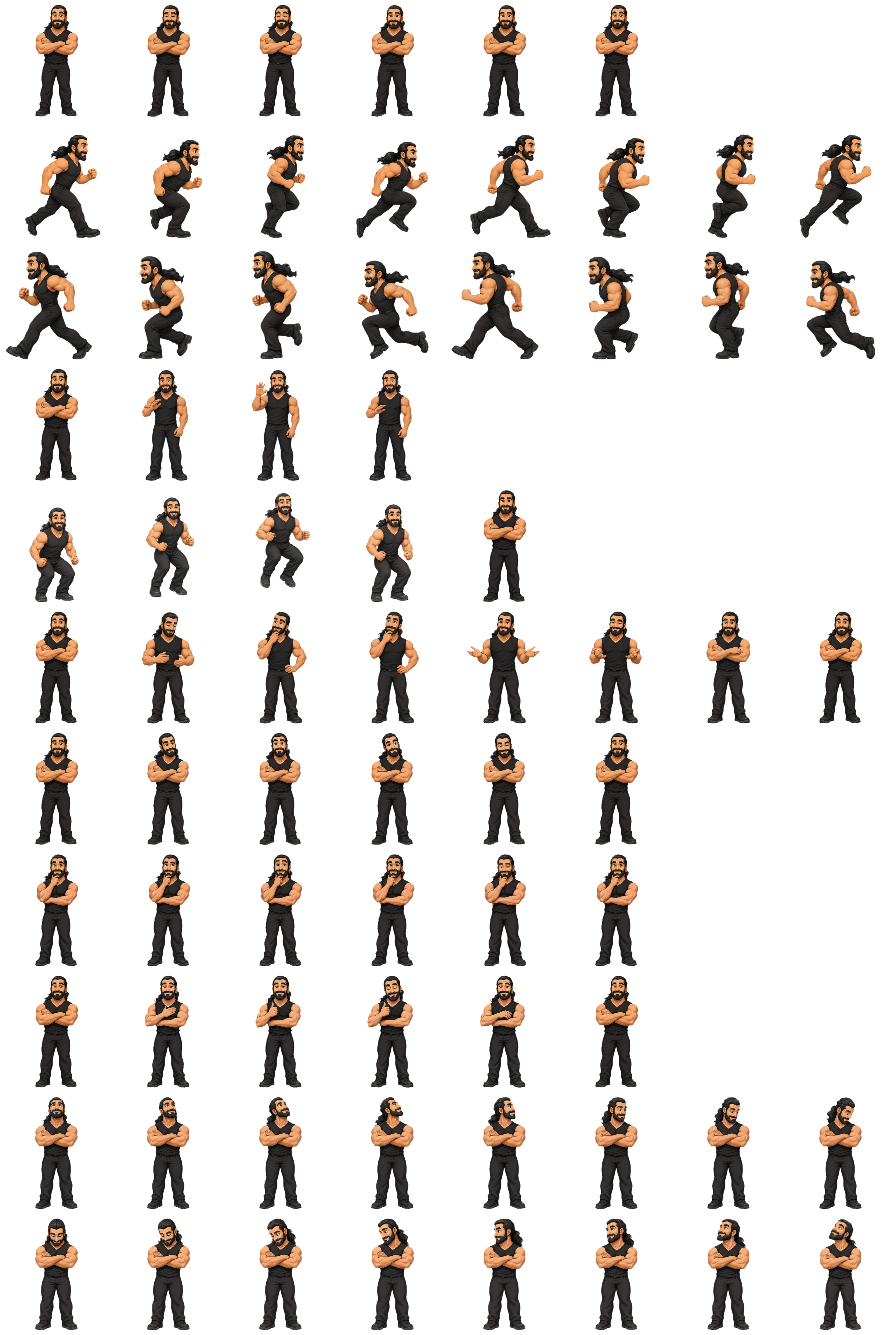
Open Settings → Companions to choose and configure your desktop companion. The app’s sidebar artwork opens your default companion. Each character can have its own model and Voice Profile; AIDA also offers dress colours. AIDA and AIMAN greet you with a wave, while HALRON greets with his eye. Move the pointer within the app’s character area to guide their gaze; move away to return to neutral. Motion respects macOS Reduce Motion and the app’s animation setting.
Use typed chat first, or choose the round Voice Chat control for a spoken conversation. Allow microphone access when asked. First use may require speech-language assets to download; typed chat remains available.
In Settings → Personalisation, set User Friendly Name if you want new Session and Companion requests to use a preferred form of address. Leave it blank for standard greetings; previous conversation text stays unchanged.
06 / KNOW WHERE YOUR REQUEST GOES
Built-in Local models process prompts and attachments on your Mac. Turn on the Private Mode shield in Sessions or Companion to restrict model requests to those models and block every Client connection, including local-server endpoints.
After setup, Settings → Client lets you configure an OpenAI-compatible provider using your own endpoint and credentials. Select its model explicitly when Private Mode is off. Its charges, retention and privacy policies apply to the content you send.
Private Mode controls model routing. Model downloads, licence services and optional News still use the internet. It does not undo earlier provider requests. Automatic news checks can be turned off in Settings.
07 / IF SOMETHING NEEDS ATTENTION
Check your network and free disk space, then try the installer again from Downloads → Personal. For an in-app model transfer, inspect its status and use the offered retry or resume control. Do not confuse the app ZIP with the separate model downloads.
Read the exact runtime message and check that the selected model is installed and fits the permitted Local budget. Choose Retry Quick Test, adjust the budget or use Choose Another Model. You can select Continue and Test Later to finish with verification pending, then reopen it from Settings → Metal → Models → Verify Local Model…. If Finish Setup is still unavailable, check the other incomplete steps. Avoid Factory Reset as a first response; preserve your work and contact support if the error persists.
Choose a smaller starter model or close other heavy applications. Change HALRON’s budget only within the displayed range and model guidance. Model file size, loaded memory and request-time context are different; a large policy ceiling does not make every model fit.
This is expected: Private Mode allows built-in Local models only. Install or enable a suitable Local model. Turn Private Mode off only when you intend to use a configured Client provider.
Check microphone permission, the selected speech language and the availability of its on-device assets. For spoken output, check installed voices and the companion’s Voice Profile in Settings. You can continue with typed messages.
Open Settings → Licence, enter your Personal licence key and choose Activate This Mac. Internet access is required for activation. Your saved Sessions, Reader and exports remain available; an Essential licence does not activate Personal.
Email customerservice@floatingpoint.tech with the app version, Mac model, macOS version, the step you reached and the exact error message. Leave out licence keys, provider credentials and private conversation content.
READY WHEN YOU ARE